

If your team uses Slack, you're in luck. Our integration for Slack can notify you when a new email conversation comes in, when an email conversation is assigned to you, or when you're @mentioned. You can even create a channel that notifies you of new CSAT ratings so you can celebrate the wins as a team and work together when problems arise.
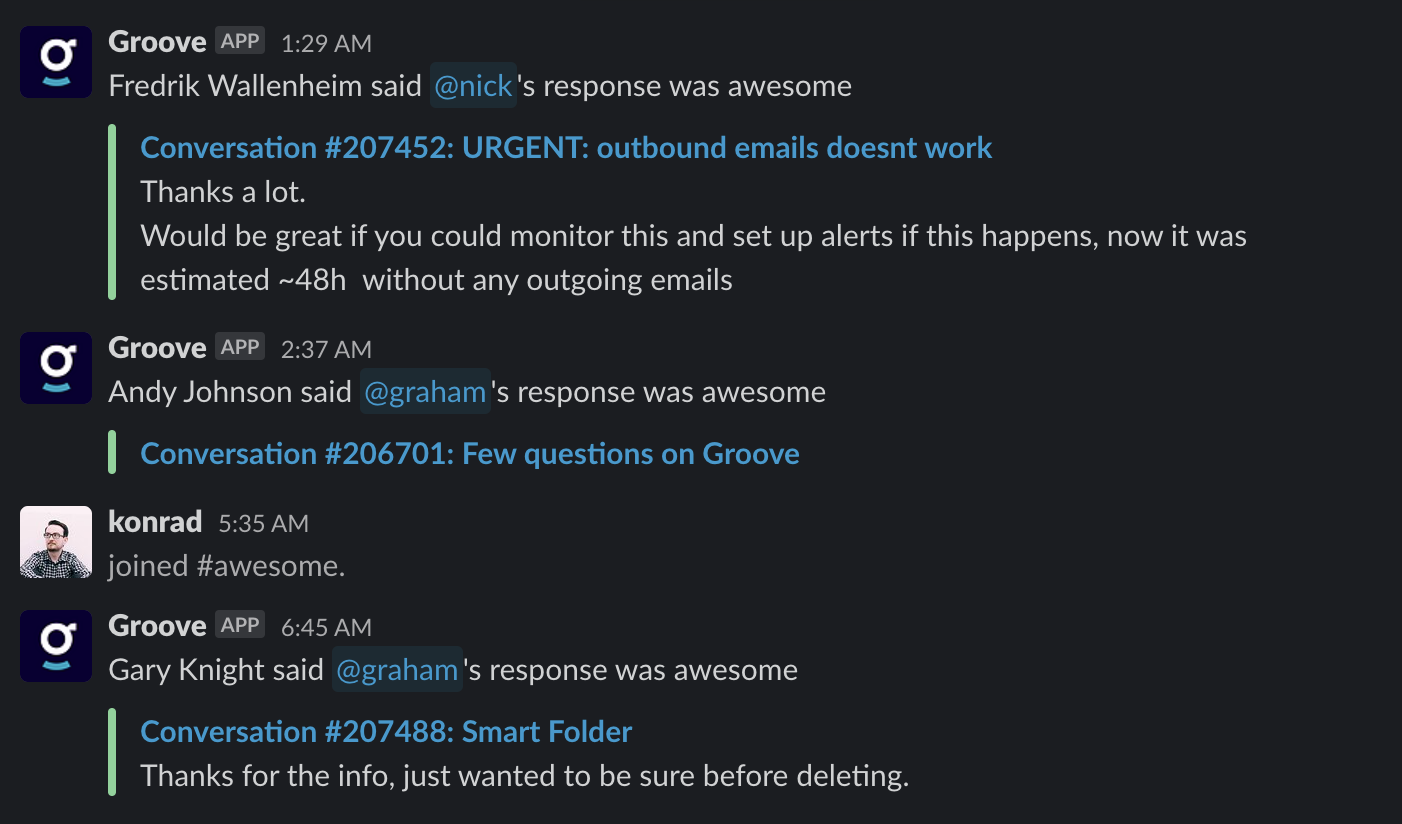
Getting started takes only a minute and needs to be set up by an administrator on your Groove and Slack accounts.
Connecting Slack to Groove
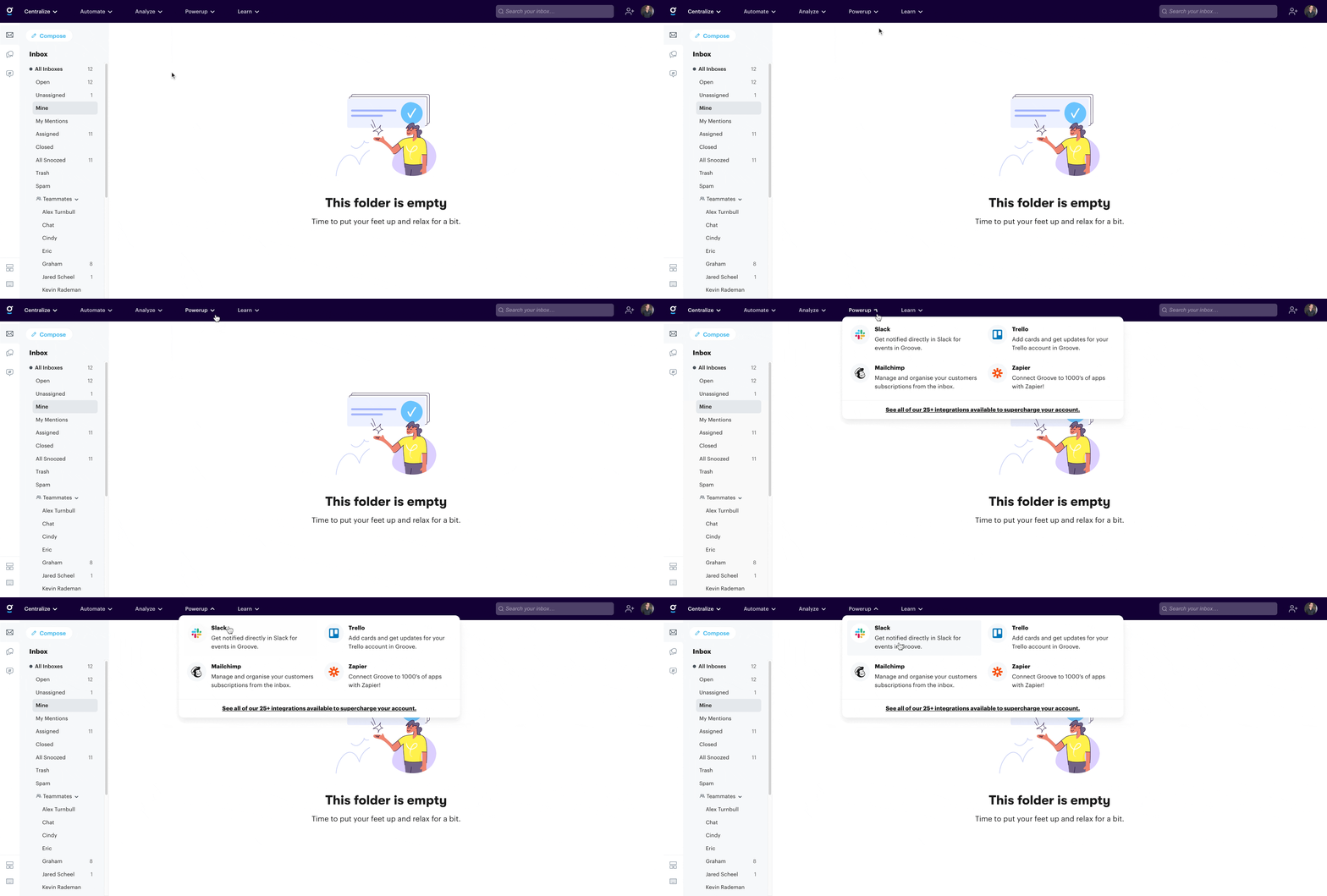
To set up your integration for Slack, go into Apps → Slack
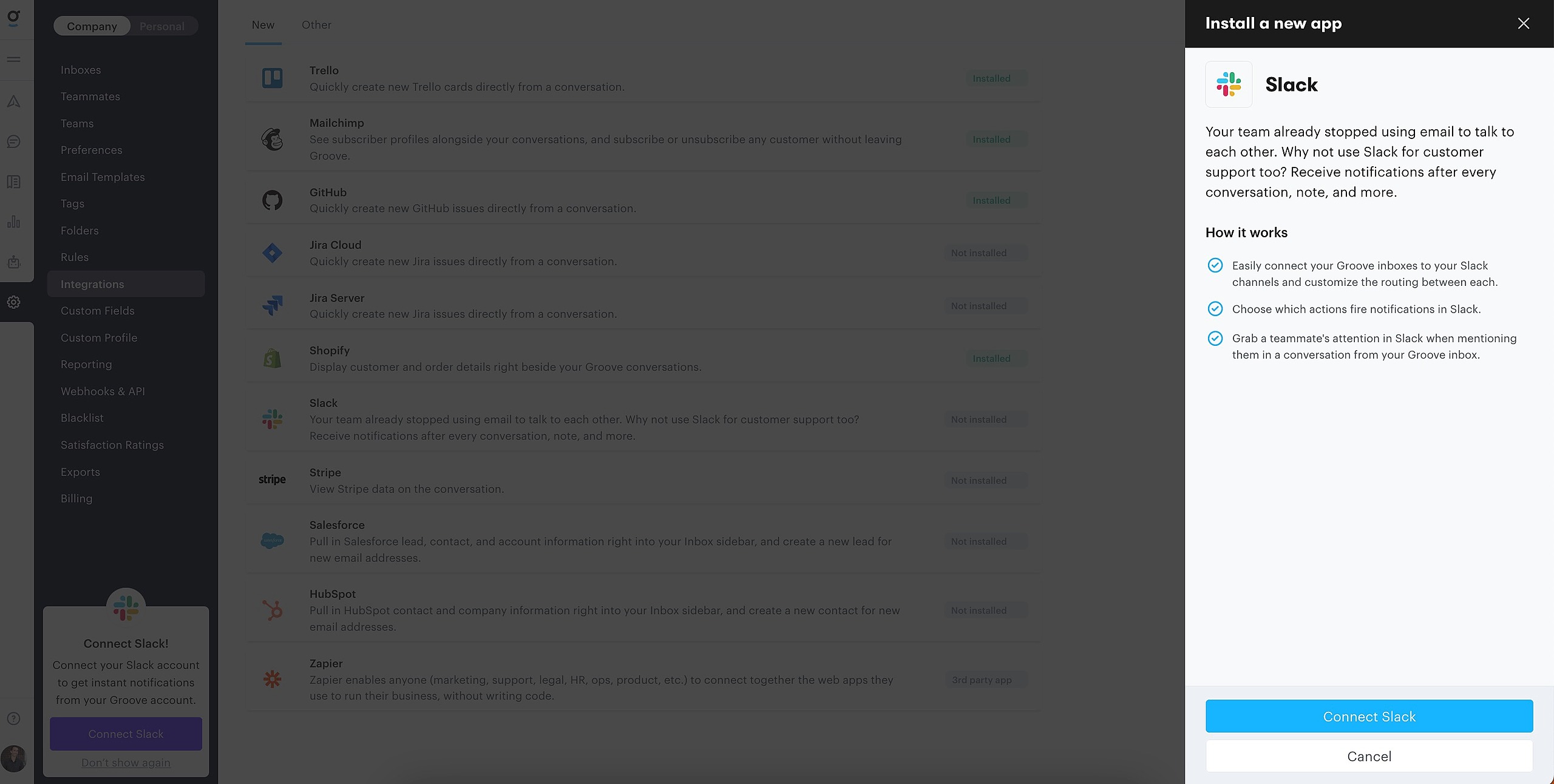
Next click Connect Slack.
A pop-up page to pick your Slack Workspace will appear, which you will need to login. Next, you will see your team options, and ff you don’t see your team listed, you can enter your email address to find your team.
Once you select your team, an Authorization screen will display, then Authorize.
Mapping Slack Usernames to Groove Teammates
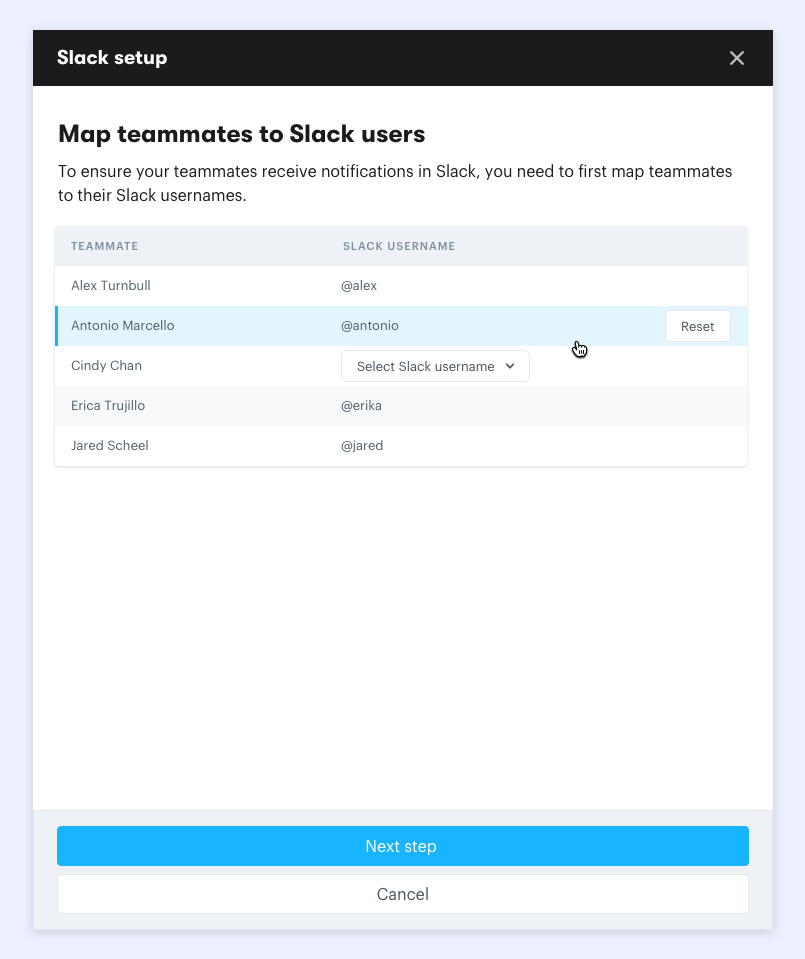
Once integrated, back inside Groove, map your Slack users to your Groove users. If you don't have one of the teammates in Slack, or don't want to link them up for notifications, just skip over them.
Setting Up Notifications
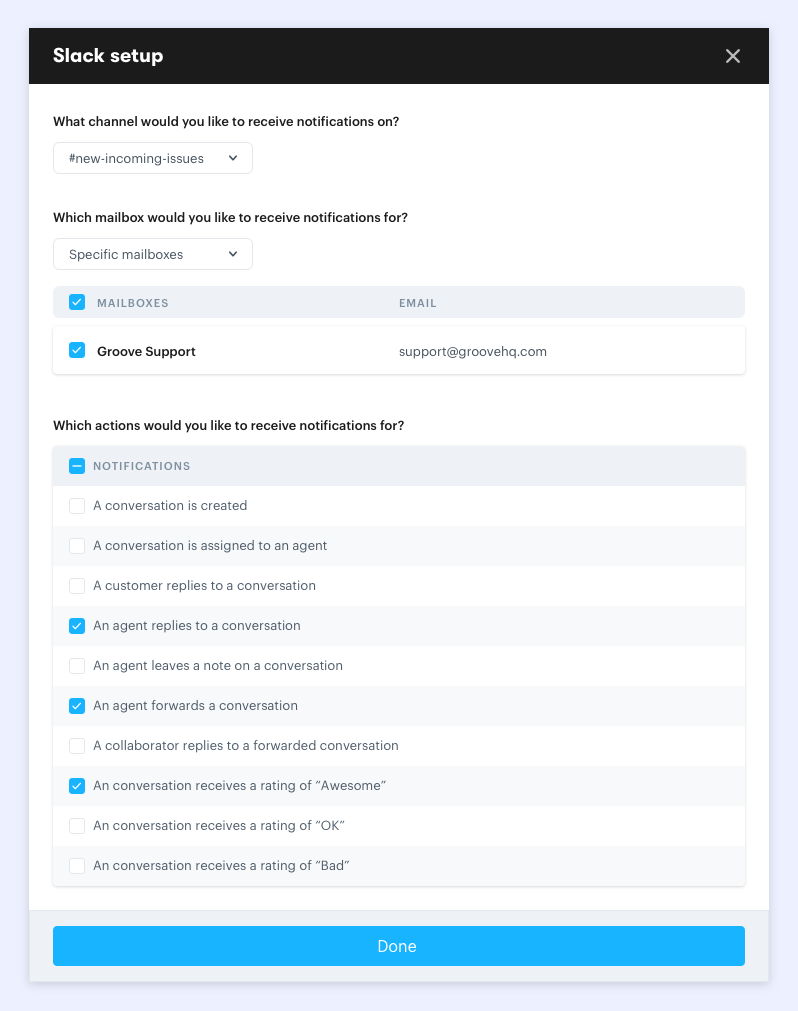
Next, choose which channel in Slack to receive notifications along with the inboxes and conversation actions that should be sent through. If you want notifications in multiple channels you can do that from the overview screen next.
Once you've set up the notifications you'd like to receive, click Done.
That's it—you're ready!
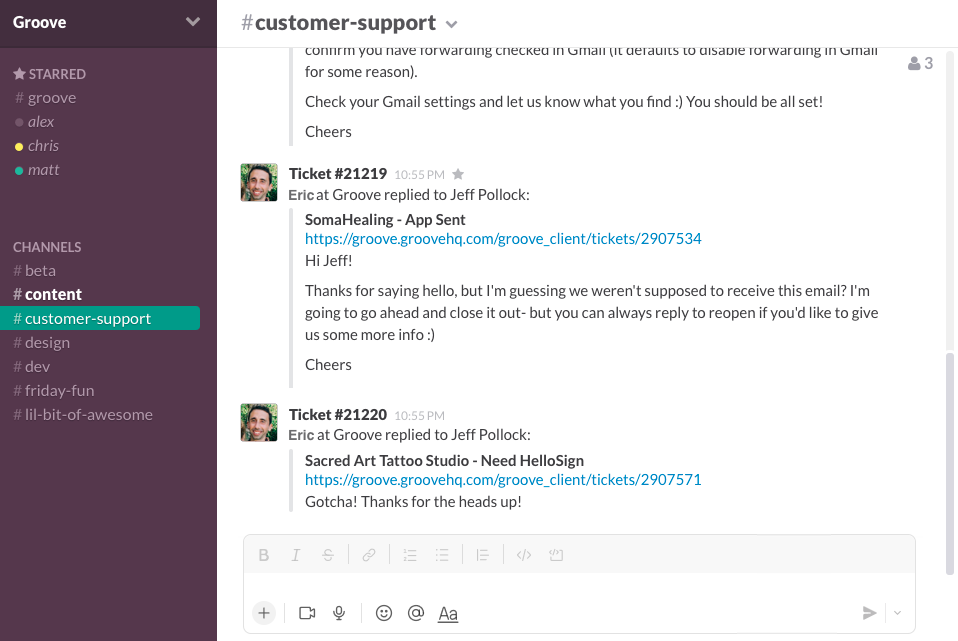
When you receive conversations matching the conditions you configured, you’ll see the notifications come through into the channel you set up.
Adding additional Slack channels to receive Groove notifications on
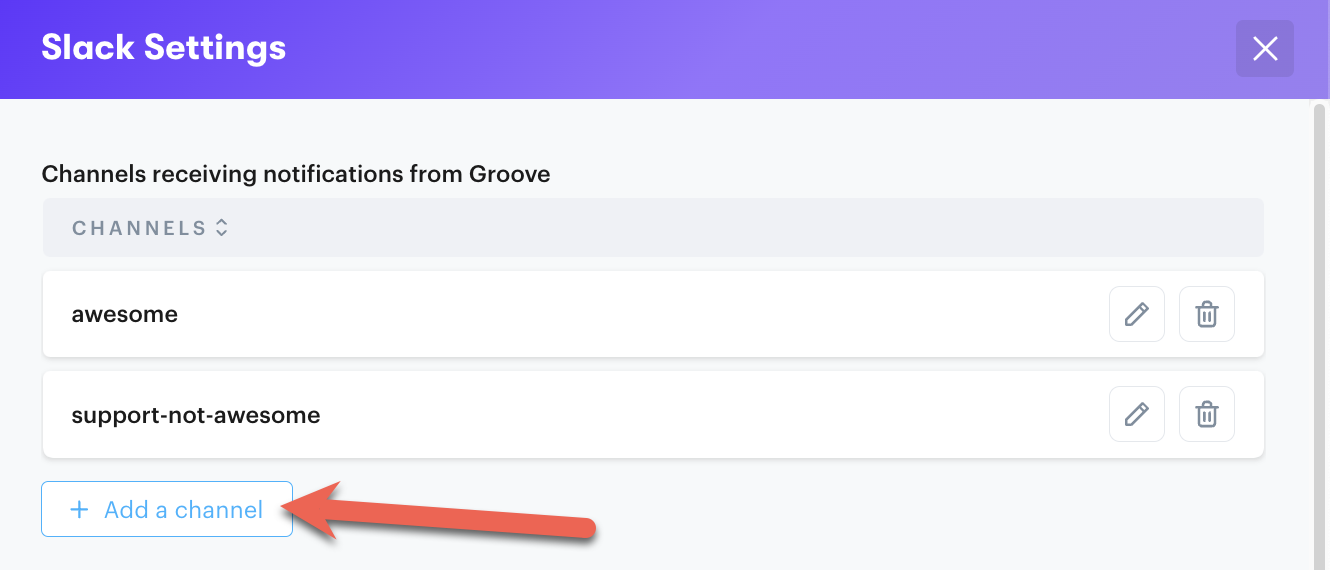
If you would like to receive different notifications on other channels in Slack, in the overview screen, click the + Add Channel button and follow the steps to receive the notifications in the channel of your choice.
Note: the Slack channel needs to be public in order for Groove to be able to sent notifications to it.